

A very common cyber attack on any website is when intruders guess passwords until they hit the jackpot. Then they take over the site and do all kinds of damage to you.
So, how do you keep your site and its precious data safe from such brute-force attacks?
Limit login attempts is the certain solution here. Simply limit the number of times someone can attempt to log in to your website and block any guesser!
Sounds great?
Then let’s jump in and learn how to limit login attempts to strengthen your WordPress site.

Why Should You Limit Login Attempts In WordPress?
The type of cyber attack we’re talking about is Brute Force attacks.
Let’s say, you used a weak password that someone could guess easily to log in to your WordPress dashboard. They can even implement an algorithm and set up a bot hacker that will continuously guess passwords and attempt to log in. Just imagine the damage they can do when they get hold of your site.
So, does WordPress not limit login attempts to your website?
By default, no. Though WordPress itself is a secure CMS, some special features like this need to be done manually.
You can enter passwords as long as you want until you successfully get in. WordPress kept this open for users’ benefit in case they keep forgetting passwords and get stuck. But this raises a whole bunch of security threats for your site.
Here comes the limit login attempts feature. By implementing this, you can limit the attempts to log in to your WordPress dashboard. After some fixed number of tries, the user will be blocked to try further to get in. Thus, hackers or bots won’t be able to take over your data by force login.
However, if you’re the one who owns the site and forgets your password, don’t sweat over it. Just go ahead and change the password by resetting it.
How To Limit Login Attempts In WordPress?
Since WordPress doesn’t limit login attempts by default, we need to set it up manually with the help of a plugin. This plugin will limit the maximum number of login attempts on WordPress, and block hackers.
Let’s see further through this guide to make your WordPress login page more secure:
Step 1: Installing Limit Login Attempts Reloaded plugin
While many plugins provide the restricting feature, Limit Login Attempts Reloaded is the best one out there. It provides advanced settings to limit login attempts to your WordPress site without costing you any money. A paid version exists, but most users won’t need it anyway.
However, let’s install it already!
Open the WordPress Dashboard and go to Plugins > Add New Plugin. Here search for limit login attempts and the Limit Login Attempts Reloaded should show up. Click on Install and it’ll start installing.
Once it finishes click the Activate button to activate the plugin. However, if you’re new and need help installing a plugin, then go and read our guide on how to install a plugin first.
Step 2: Customizing the Settings
Now, let’s tweak the plugin options to implement our desired settings on the login page. Go to the Limit Login Attempts tab that appears on your WordPress dashboard. From here click on Settings.
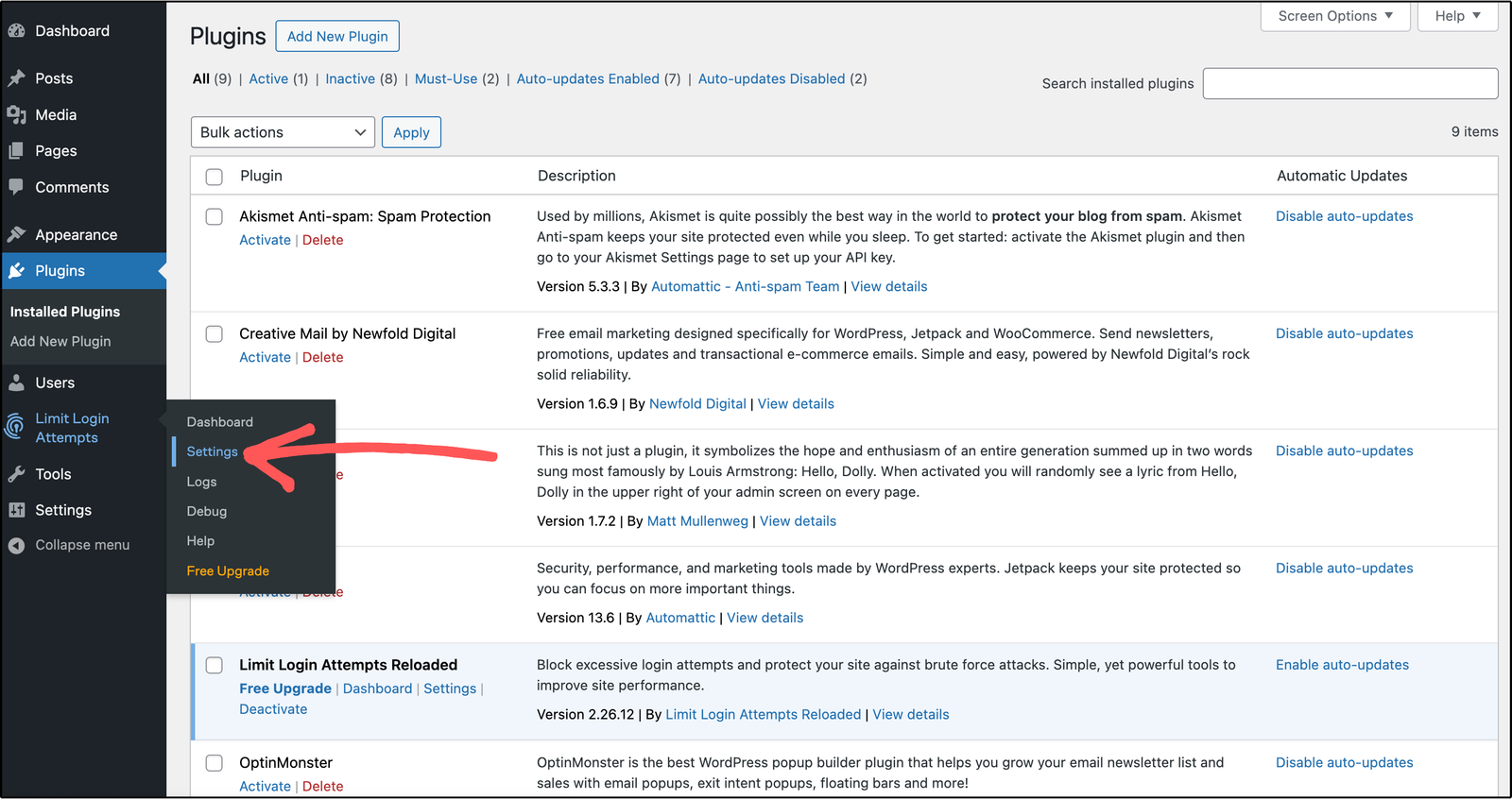
Scroll down to the Lockout section. Here are four options:
- Number of retries allowed
- Timeout when you reach the number of retries
- A further number of retries
- Reset Retries Time
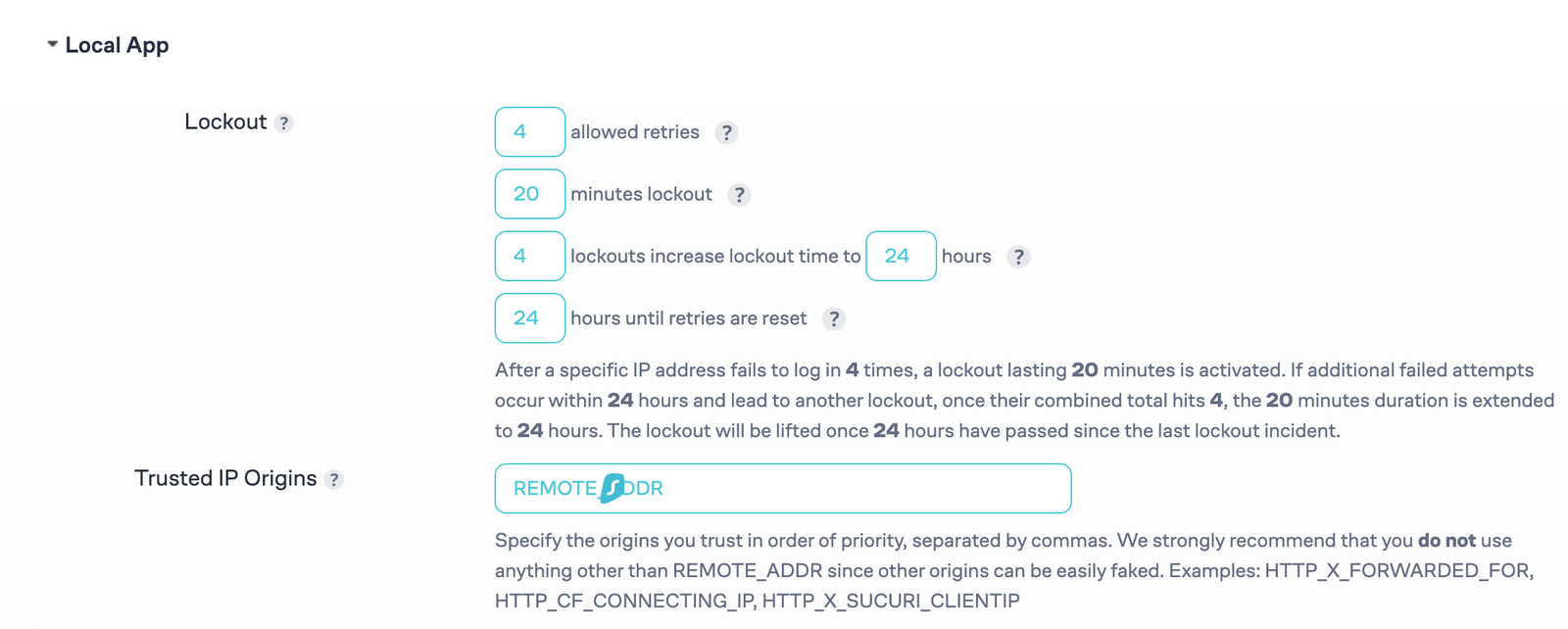
These are pretty self-explanatory. Still, you may get into confusion. So, I’m gonna discuss each option briefly.
- Allowed Retries: If you want to allow only five password attempts, set 5 next to the number of allowed retries.
- Minutes Lockout: Set how long they won’t be allowed to log in after incorrectly entering the password. By default, this is set to 20 minutes. Change this value to your preferred number of minutes.
- Further Number of Retries: When the initial lockout time expires, users will be able to log in again. Now, the intruders will definitely try again after 20 minutes and then again and again, right? To prevent their frequent tries, increase the lockout time after several failed attempts. By default, the lockout time will be increased from 20 minutes to 24 hours after 4 hits.
- Reset retries time: Set the time after when the lockout will be lifted and the users will be able to try again. We suggest setting up a longer time. This will not only ward off malicious attempts but also make users of your site more careful in remembering their passwords.
There is also an option to notify you via email when someone runs out of the number of limits. This entirely depends on if you want to set this option, otherwise leave it.
Click on the Save Settings button once you have configured everything.
Now, let’s test this out. Log out of the WordPress Dashboard and you will be back to the login screen. Let’s enter the wrong password and see what happens. You will see the number of retries left as you provide the incorrect credentials.
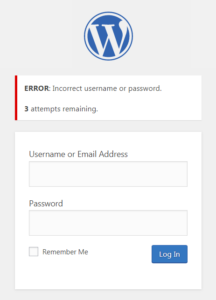
When you see this, this means the plugin is working and you have successfully imposed limits to your WordPress login.
Additional Ways to Secure WordPress Login Page
Limiting the login attempts is not the only thing to keep your WordPress site safe. Hackers are going to exploit other ways to gain access to your site. You can further increase WordPress security by following the following methods.
Implement Two Factor Authentication
Even if someone manages to guess your WordPress password, a 2FA system in place will prevent them from logging in. In addition to passwords, they will also need a code which will be sent only to your phone. They will not be able to log in and your site will remain safe.
We have a dedicated article on how to set up a two-factor authentication on WordPress. Do check that out for the complete guide.
Integrate Captcha in the Login Page
Most brute force attacks are carried out against numerous bots going after your WordPress login page. A captcha works great in protecting your site against bots. A combination of visual and audio challenges prove difficult for bots. Captcha works great when paired with a 2FA protection in place on a WordPress site.
Monitor Incoming Traffic
If your site was under brute force attack previously, you can confirm this by analyzing activity logs. You will likely see a lot of failed logins coming from specific IP Addresses. Then you can block them specifically to prevent future attacks from the same location.
A security plugin works great in this job. Check our list of the best security plugins for WordPress and get the one best for you.
Final Words
Securing the WordPress login page should be your first priority. That includes limiting login attempts, implementing a captcha, and setting up a 2FA system. This will make sure only legitimate users can log in to your site while keeping the intruders at bay.
Even though WordPress is pretty secure itself, follow the proper security guidelines and strengthen your site. Always remember, prevention is better than cure. And that applies to your WordPress site too.